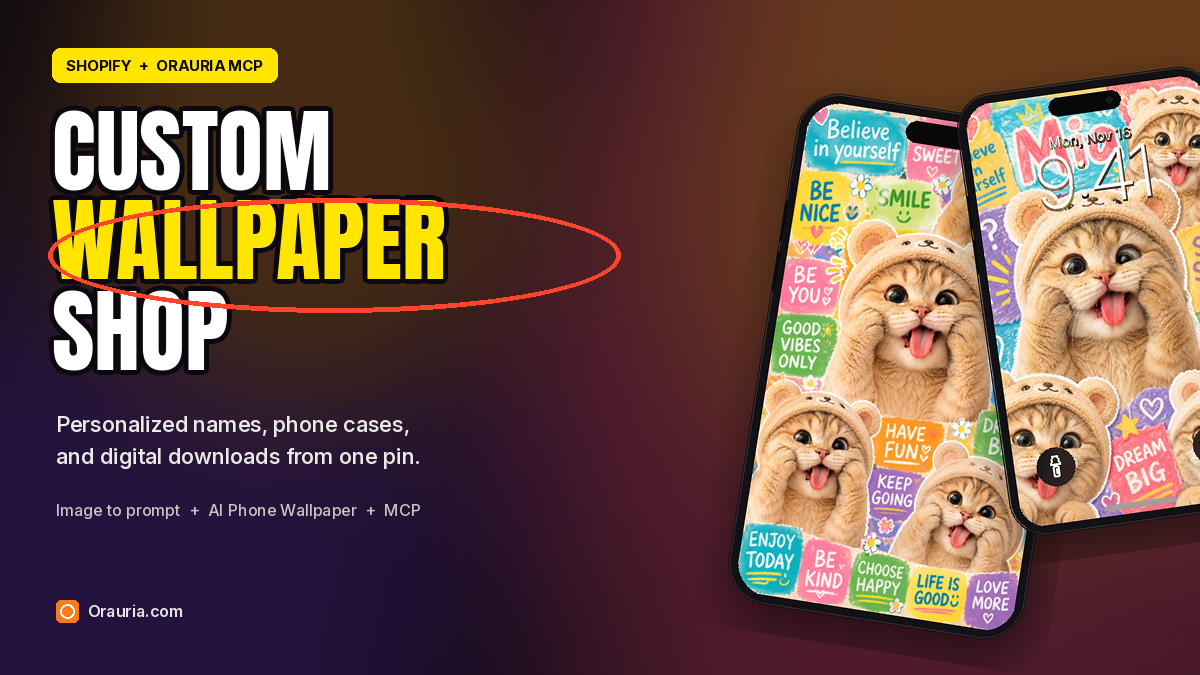
A personalized wallpaper shop does not start with a print run. It starts with a style you can repeat, a name a customer can type at checkout, and a file you can actually deliver: a 9:16 iPhone wallpaper, and, if you want a second product, a matching phone case printed with the same art. This playbook uses one cute-cat pin to build that loop for a fictional demo shop we named Kittyvibes.
The Image to prompt steps, the stills from Orauria’s new AI Phone Wallpaper module, and the “Sophie” wallpaper from Orauria MCP are real. We ran them, and the task numbers are below. The Instagram likes, the Shopify-style product pages, and the $1,648.22 example month — 140 wallpaper orders at $4.99 plus 38 cases at $24.99 — are illustrations of a plausible catalog, not figures from a store we operate, and not a promise that the same numbers will show up in yours.
The reference is this pin by wallpapper or dpz, titled “CUTE CAT LOVER WALLPAPER”: a golden-brown tabby kitten in a plush bear hood, paws at its cheeks, tongue out, already labelled AI modified. It is a strong style teacher. It is also someone else’s picture. The wallpapers in this post are new collage files, generated from a rewritten brief and a style reference. They are not a crop of the pin, and a real shop should not treat the pin image as a product you are allowed to resell.
The playbook at a glance
- Install the Chrome extension.
- Find a pin that teaches a style you can own — a character, a palette, a lettering habit — not a file to reprint.
- Run Image to prompt, copy the brief, and credit the person who posted the pin.
- Open Orauria’s AI Phone Wallpaper module, paste the brief, attach a reference, and generate in 9:16.
- Personalize the same style with a name (“Mia”, “Leo”), then sell the file as a digital download and, if you want, a matching print-on-demand case.
- When a Shopify customer types a name, send that name to Orauria MCP with a small script or an agent — not a built-in Shopify app — and deliver the file. Treat the first month as an example, not a guaranteed income.
First, install the extension
Image to prompt only works after you install the Chrome extension AI Assistant Copilot – Orauria. Get it from the Chrome Web Store before you go looking for a reference. Once it is on, you can right-click a pin and pull a prompt from it.
Find the pin and extract the prompt
The useful pin for a wallpaper shop is already thinking in a phone frame: a tall crop, a character you can recognize at a glance, and lettering or stickers that still read at lock-screen size. This one does that job. A single kitten fills the frame, the bear hood gives you a repeatable costume, and the startled expression is distinctive enough to become a series.
It is also labelled AI modified. Believe the label. You are looking at a picture of a picture, not a photograph you can claim, and not a file you should upload to a product page. Credit the person who posted it — here, wallpapper or dpz — and then write a new composition in a style you can stand behind.
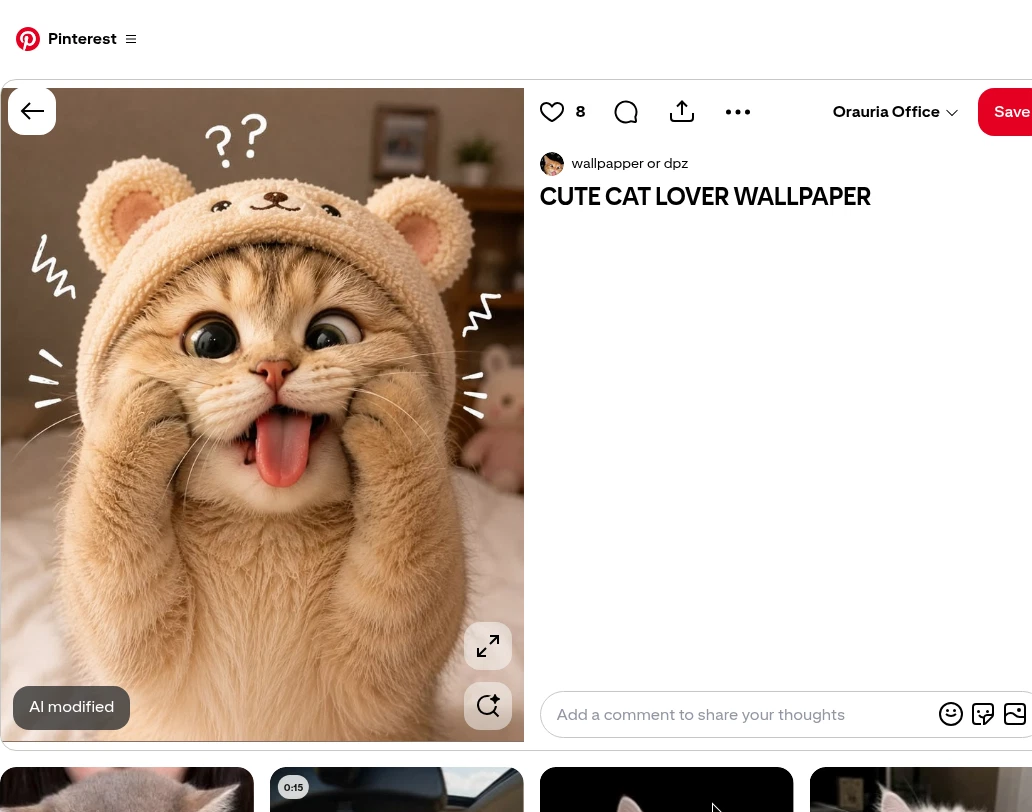
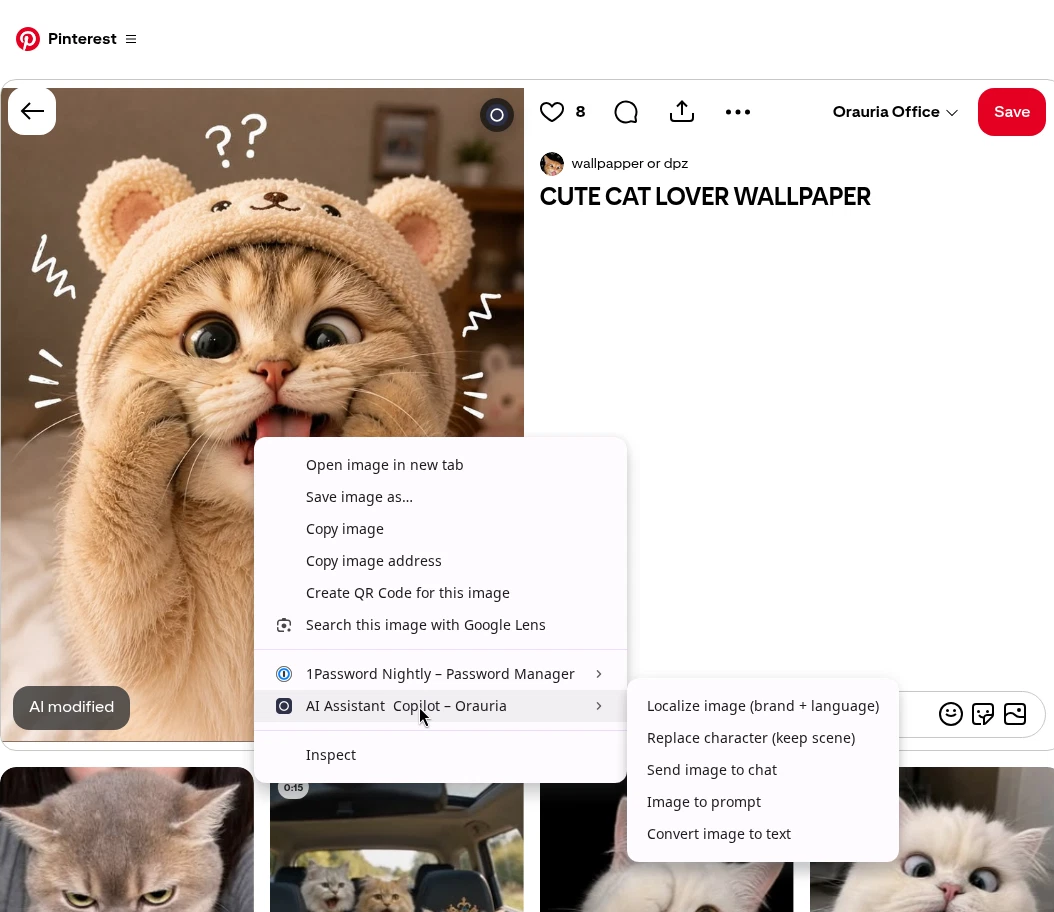
Right-click the image, open AI Assistant Copilot – Orauria, and choose Image to prompt.
The panel analyzes the picture, then returns a prompt you can copy. Generation takes a few seconds; the result appears in the same panel.
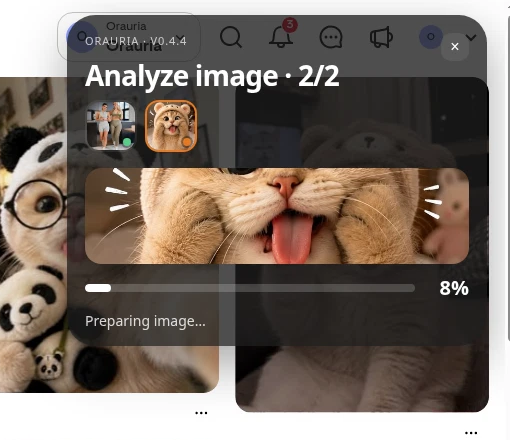
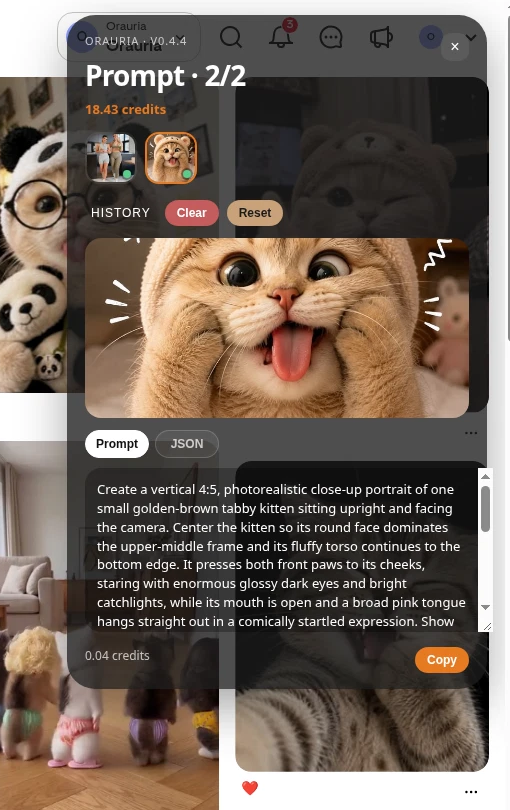
This is the brief the extension wrote from the pin, quoted in full:
Create a vertical 4:5, photorealistic close-up portrait of one small golden-brown tabby kitten sitting upright and facing the camera. Center the kitten so its round face dominates the upper-middle frame and its fluffy torso continues to the bottom edge. It presses both front paws to its cheeks, staring with enormous glossy dark eyes and bright catchlights, while its mouth is open and a broad pink tongue hangs straight out in a comically startled expression. Show fine whiskers, a tiny pink nose, soft tabby markings across the forehead, and realistic delicate fur. The kitten wears a cream, nubby plush bear hood with round ears, pink inner ear fabric, and a small embroidered bear face on the forehead. Add white hand-drawn question marks above the hood and simple playful zigzags and short emphasis strokes beside the face. Set the scene in a cozy bedroom with pale bedding in the foreground and indistinct wooden furniture and framed decor blurred behind. Use gentle warm indoor light, soft shadows, shallow depth of field, sharp facial focus, natural plush and fur texture, and a cute humorous pet-photography finish.
The useful part is the character: a golden-brown tabby, a cream bear hood, paws at the cheeks, a broad pink tongue, and a close, slightly comical crop. The part you should not ship is the pin itself. A shop needs a new file — a collage, a name, a layout that can change when a customer types “Mia” or “Leo” — not a download of someone else’s wallpaper.
Open the AI Phone Wallpaper module
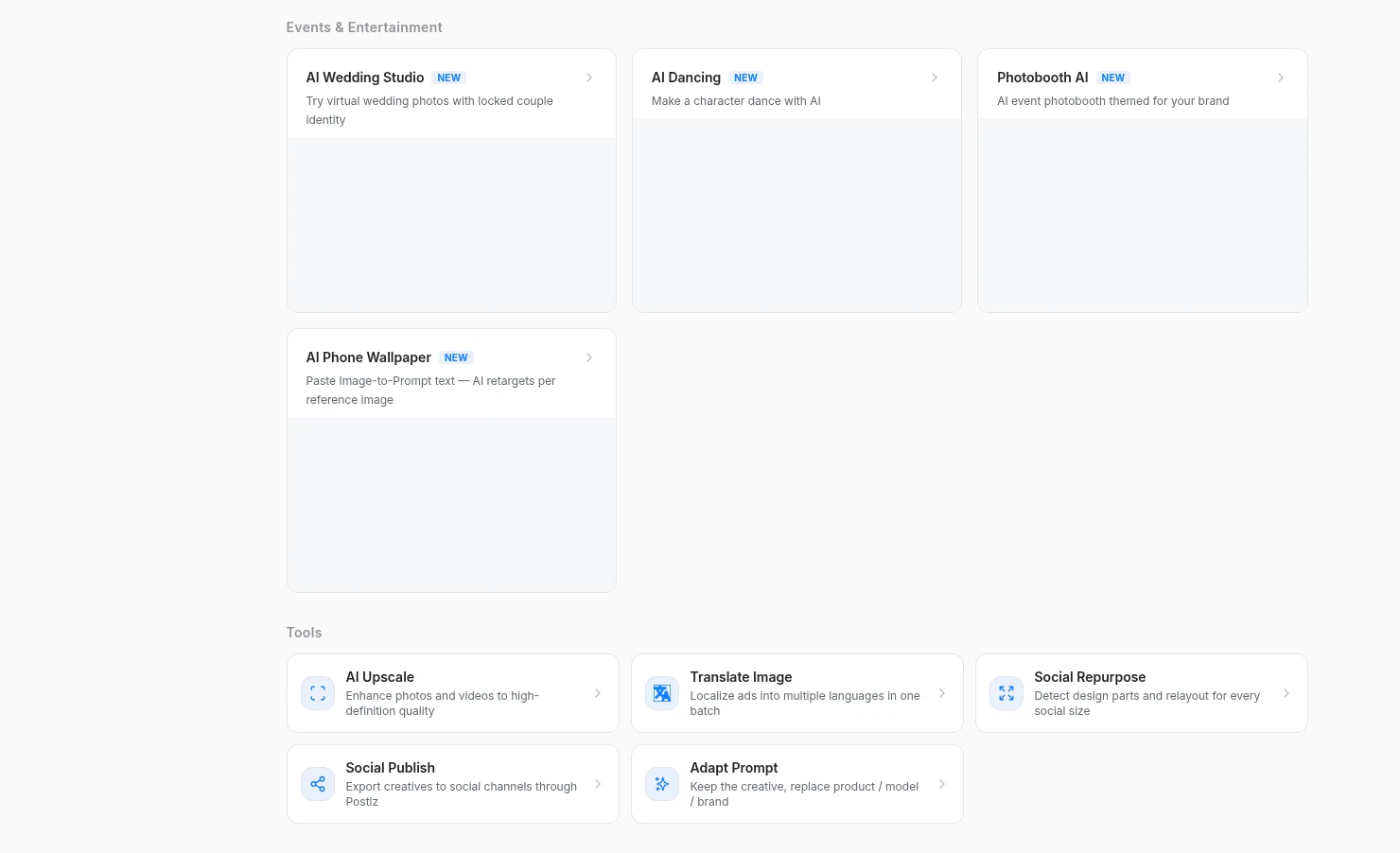
Orauria now has a dedicated wallpaper tool at orauria.com/studio/wallpaper. On the Studio AI home it sits under Events & Entertainment, with a NEW badge. The module’s own line is the point of this playbook: paste an Image to prompt brief, attach a reference, and the AI retargets the brief to that reference — same structure, updated subject cues — then generates a wallpaper.
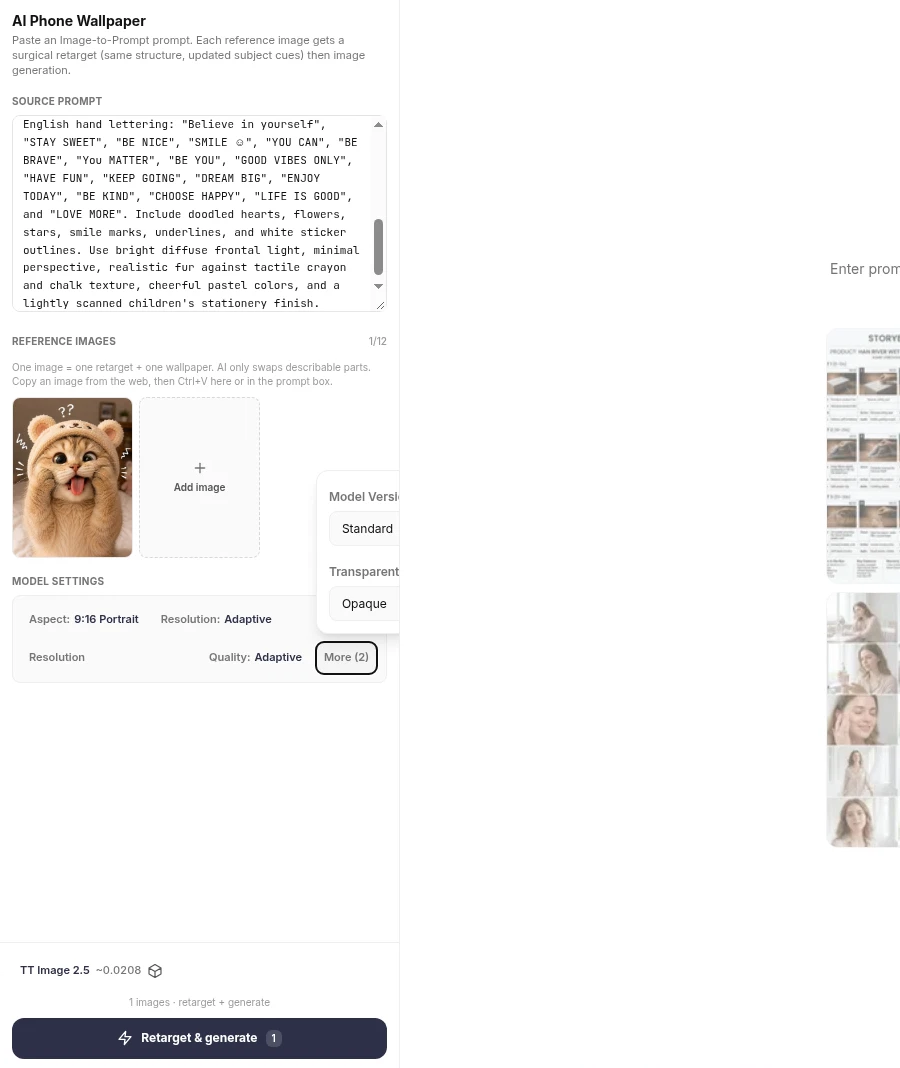
We pasted a tall handmade motivational-collage brief — overlapping painted paper blocks, hand lettering such as “Believe in yourself”, “STAY SWEET”, and “DREAM BIG”, doodled hearts and stars — and attached the kitten from the pin as the reference. The settings were 9:16 Portrait, TT Image 2.5, Adaptive quality, about 0.02 credit per image (the panel showed ~0.0208). Then Retarget & generate.
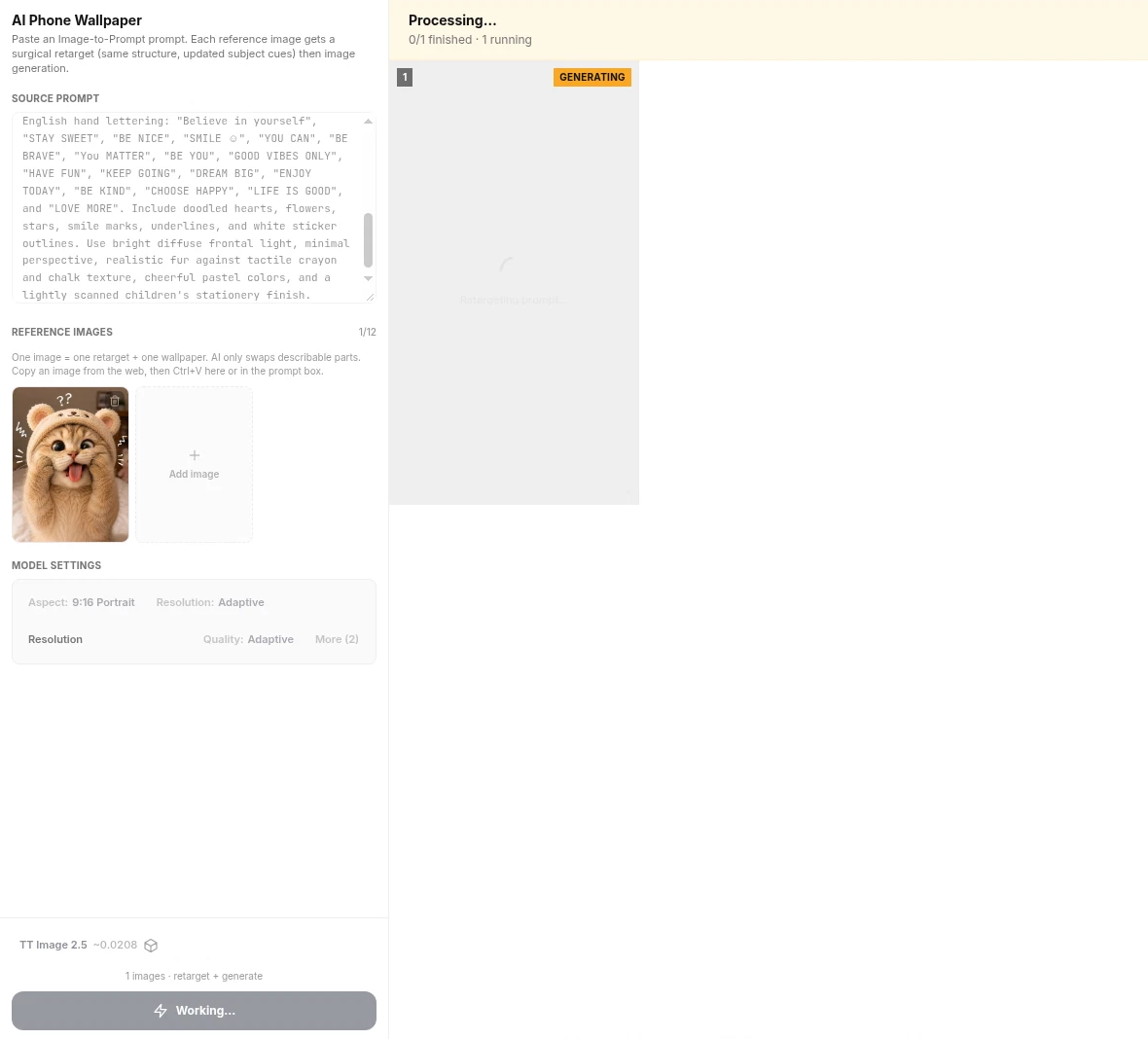
The module runs as a short batch. A yellow GENERATING badge appears on the result card while the button reads Working….
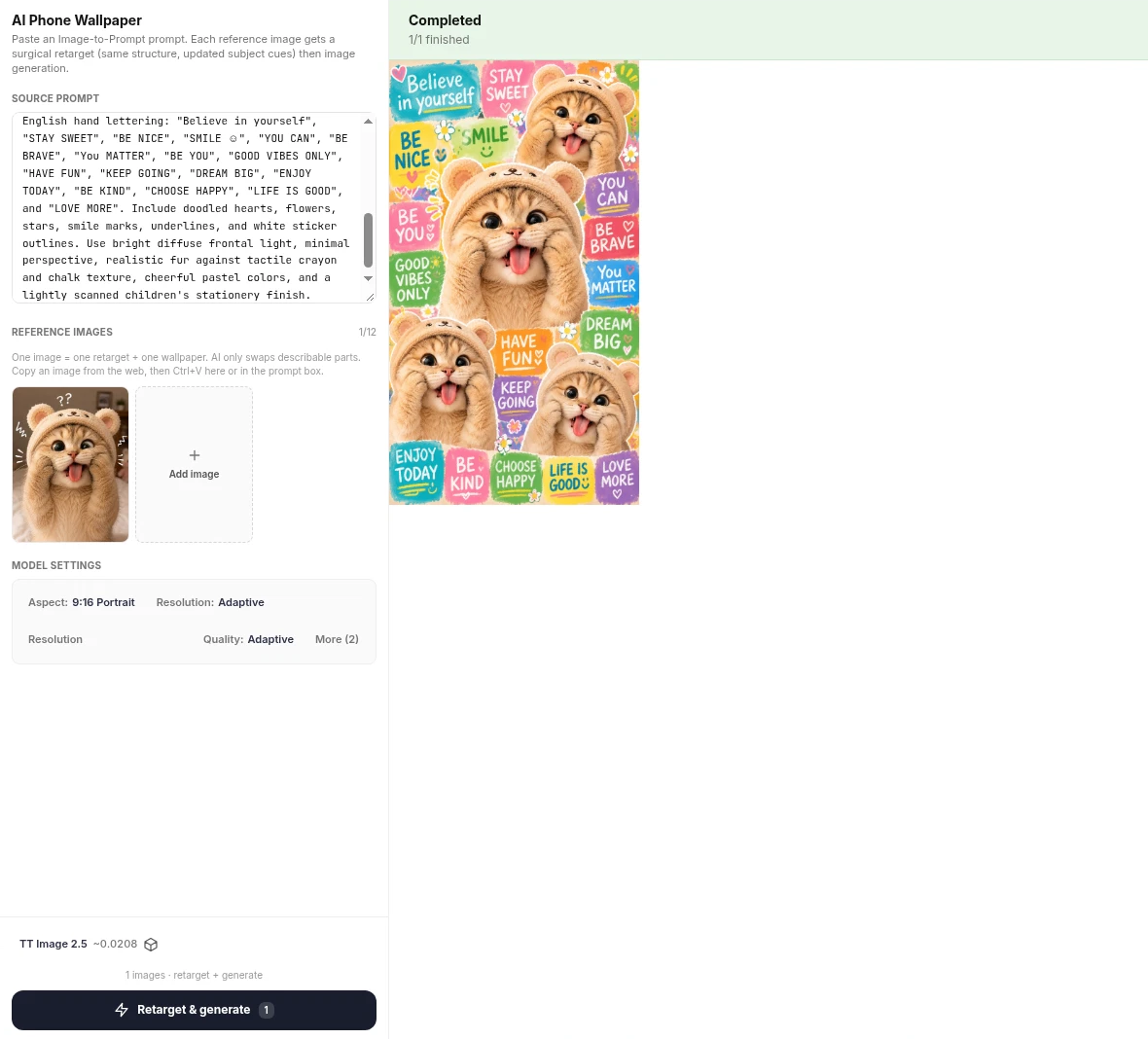
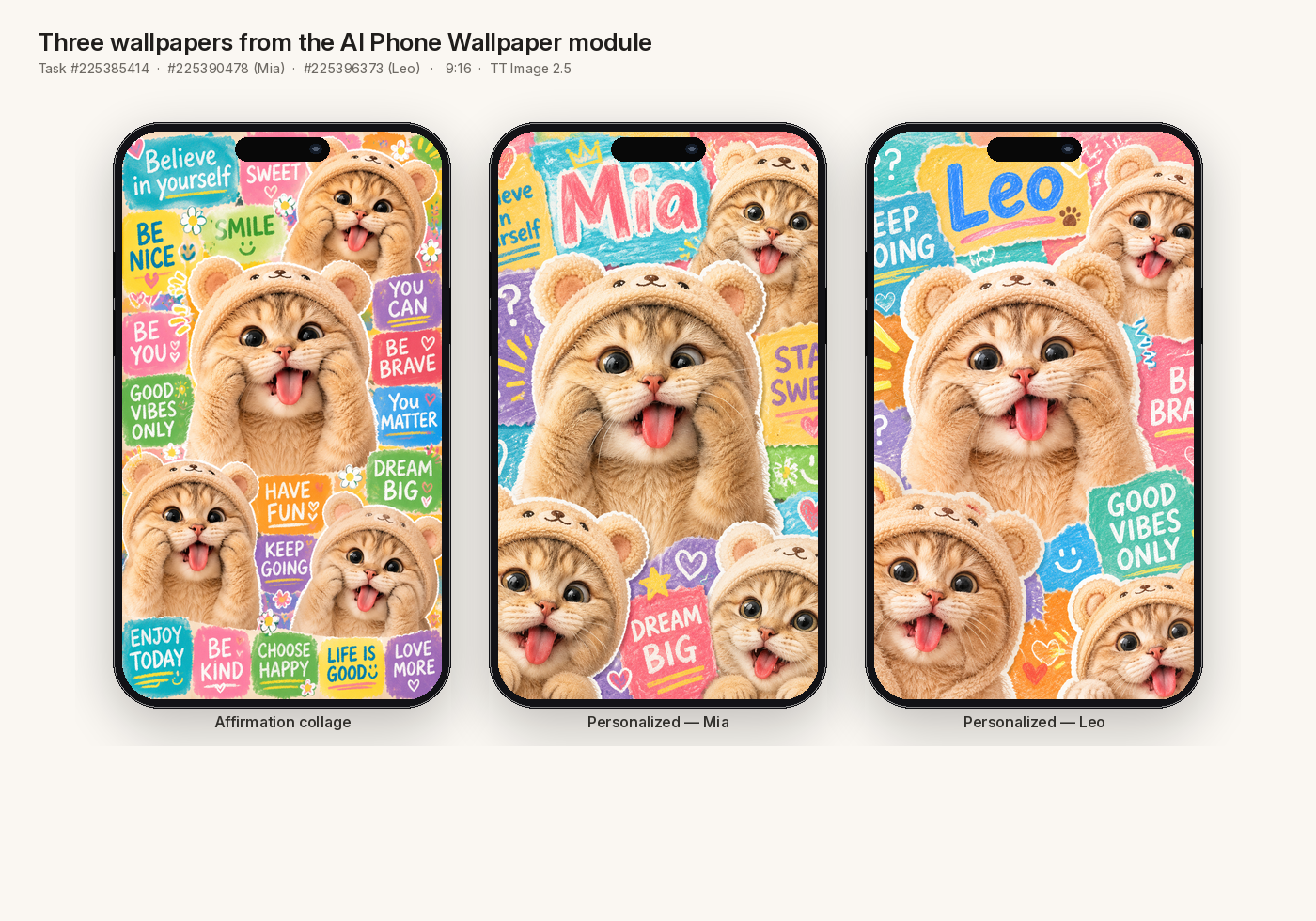
What came back is the important lesson. The brief we pasted described four fluffy white Persian-like cats in bonnets. The module did not print that. It kept the collage structure — the paper blocks, the hand lettering, the scrapbook density — and retargeted the subject onto the reference kitten: the same golden-brown tabby, the same bear hood, the same startled tongue-out face, now tiled into a 9:16 poster. That is the module doing what it says it does. Task #225385414, 720×1280, about 0.02 credit.
A shop becomes interesting when the same style can take a name. We ran the module twice more, still at 9:16 and TT Image 2.5, and asked for a large hand-lettered “Mia” on one file and “Leo” on the other. Those are tasks #225390478 and #225396373, also 720×1280.
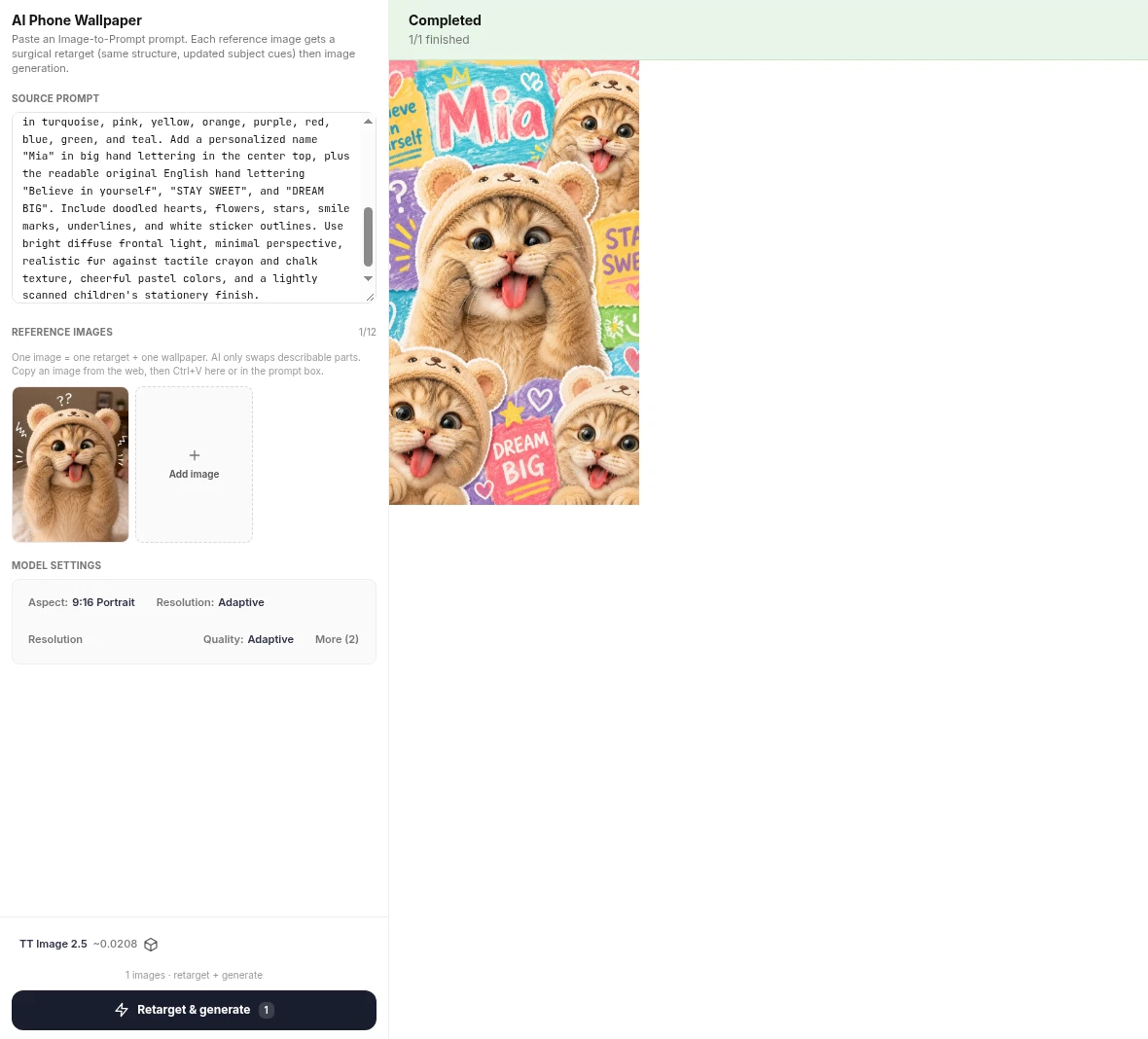
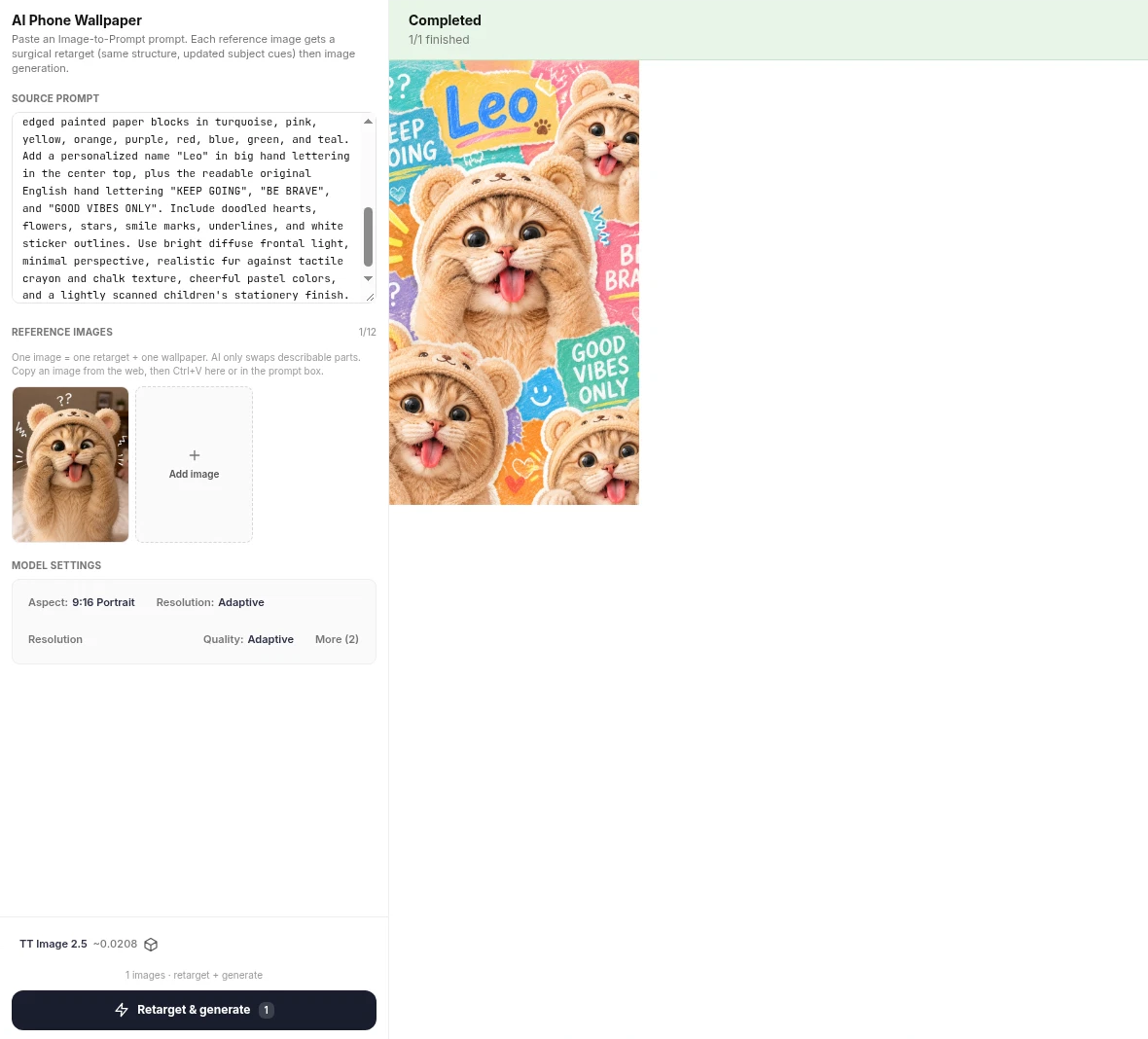
Together, the three files already look like a product line: one generic affirmation collage, then two named versions a customer could have typed at checkout.
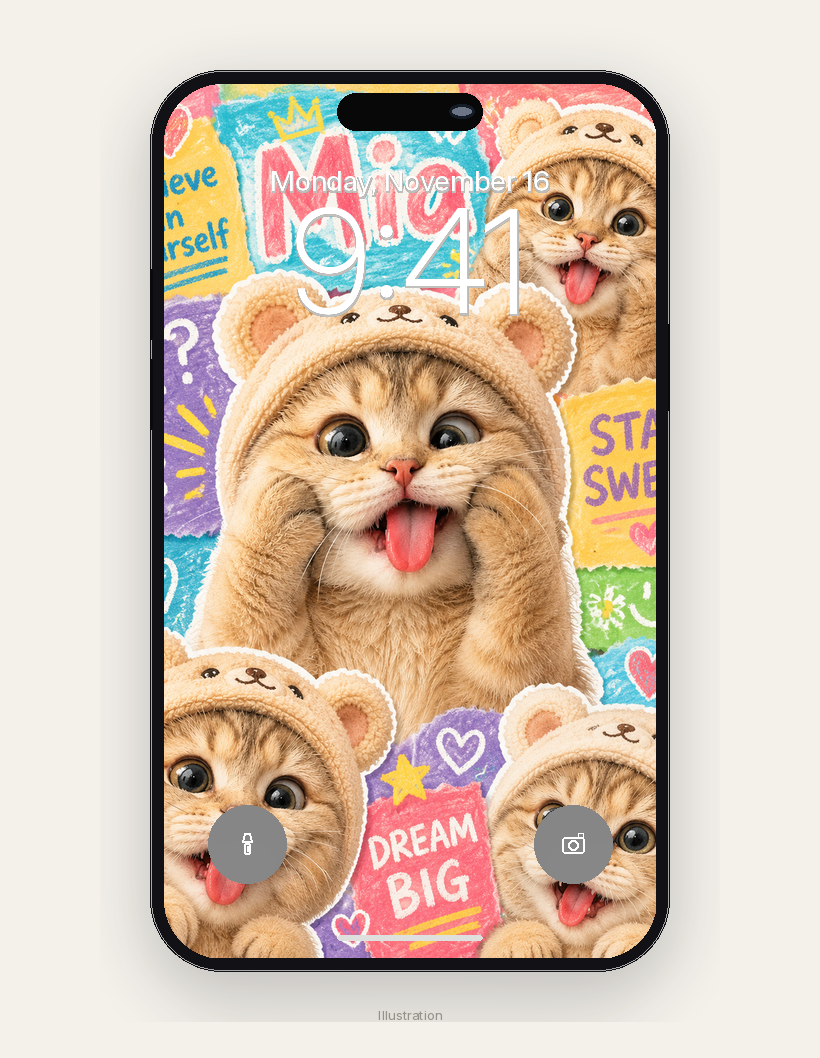
On a lock screen the named file has to survive a clock, a date, and the camera pill. “Mia” still reads under a 9:41 overlay. That is the test a wallpaper product actually has to pass.
Personalize on demand with Orauria MCP
The Studio module is how you design the first series and lock a style. A shop that takes a new name on every order needs a second door: a call you can run when the order arrives, without opening the browser again.
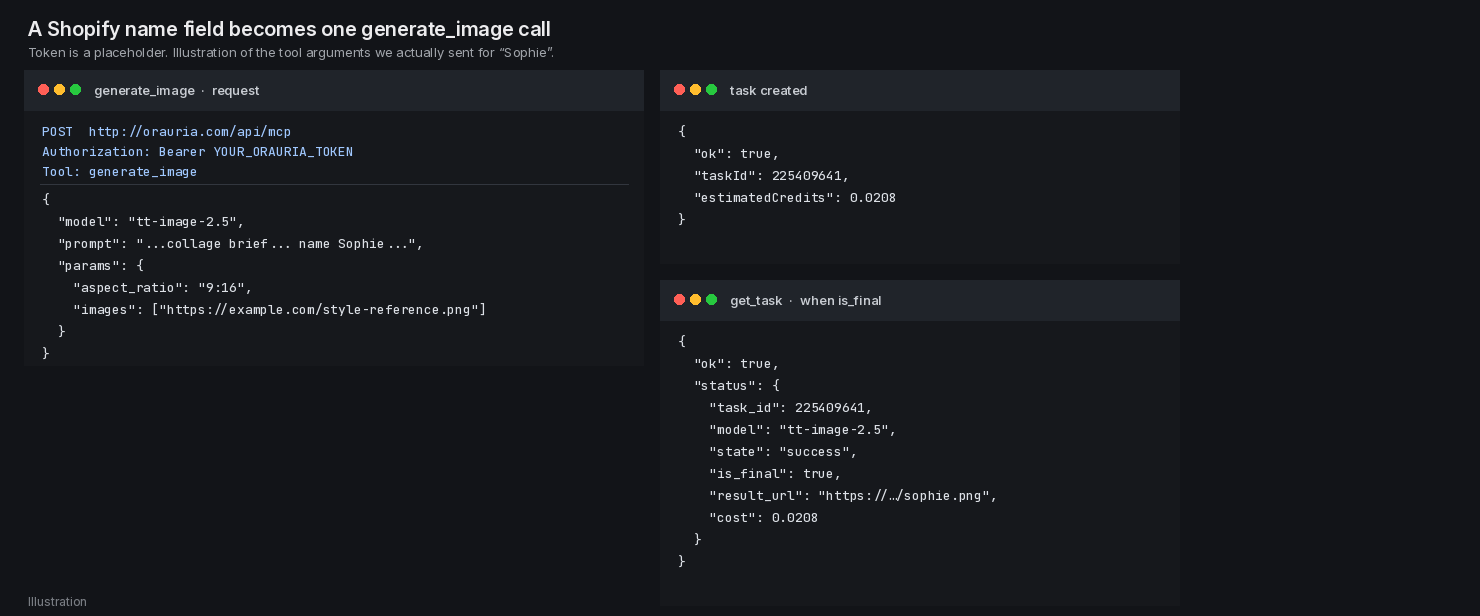
Orauria’s MCP endpoint is http://orauria.com/api/mcp, with Bearer-token auth. In a chat client the same tools show up as list_models, generate_image, get_task, and get_wallet. You create an sk- key under Profile → API keys, put Authorization: Bearer YOUR_ORAURIA_TOKEN in the client config, and the agent can generate an image at the same Studio prices. The token in this post is a placeholder. Never paste a real key into a blog, a theme file, or a public repo.
This is not a Shopify app Orauria ships. It is a workflow you can wire up: a Shopify order with a personalization field, a webhook to a small script or an AI agent, one generate_image call, then get_task until is_final is true, then a delivery step — an email with the PNG, a download in the customer account, or a hand-off to a print-on-demand provider for the case.
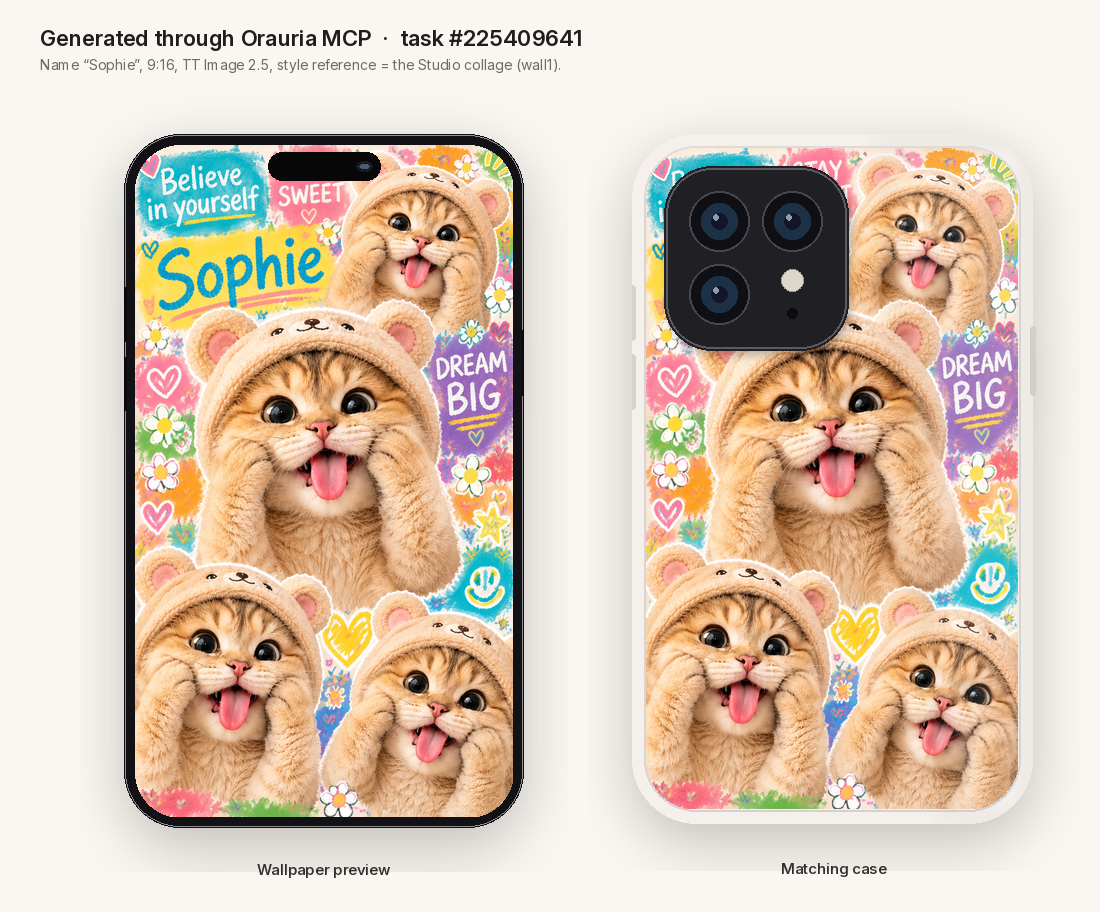
We ran that generation for a sample name, “Sophie”, as if it had just been typed at checkout. The model was TT Image 2.5. The prompt was the same collage brief, with “Sophie” in large hand lettering. In params we sent aspect_ratio as 9:16, and we also passed the first Studio collage (wall1) as a style reference in params.images. That key is not listed as a first-class field on the public generate_image schema — params is an open object — but the call was accepted, billed at 0.0208 credits, and returned a 720×1280 wallpaper whose kitten, hood, and lettering language match the Studio series. Task #225409641. Official docs describe the tool as “a prompt and a model”; if a reference upload is not accepted in your client, write the character into the prompt in more detail and keep a house style document next to the script.
The file that came back is the one a customer named Sophie would have been waiting for: the same bear-hood kitten, the name spelled correctly, “Believe in yourself”, “STAY SWEET”, and “DREAM BIG” still readable, plus a matching case render of that same art.
A script that maps a Shopify name field onto that call can stay small. The important parts are the placeholder token, the template prompt, and a poll until the task is final:
import time
import requests

MCP_URL = "http://orauria.com/api/mcp"
TOKEN = "YOUR_ORAURIA_TOKEN"
STYLE_REFERENCE_URL = "https://example.com/style-reference.png"

TEMPLATE = """Create a tall vertical 9:16 handmade motivational collage poster
with four fluffy golden-brown tabby kittens in cream plush bear hoods,
paws at their cheeks, tongues out, on overlapping pastel paper blocks.
Add a personalized name "{name}" in big, perfectly spelled hand lettering
at the center top, plus "Believe in yourself", "STAY SWEET", and "DREAM BIG"."""

def generate_wallpaper(customer_name: str) -> int:
    """Called from a Shopify webhook, or from an agent that reads the order."""
    # In an MCP host this is a generate_image tool call, not a hand-rolled
    # REST body. The arguments are the same either way.
    payload = {
        "model": "tt-image-2.5",
        "prompt": TEMPLATE.format(name=customer_name),
        "params": {
            "aspect_ratio": "9:16",
            "images": [STYLE_REFERENCE_URL],
        },
    }
    headers = {"Authorization": f"Bearer {TOKEN}"}
    # Send payload through your MCP client, then:
    # task_id = response["taskId"]
    # poll get_task until status["is_final"] is true
    # download status["result_url"] and deliver the PNG
    return payload
Keep the key in an environment variable or a secret store, not in the theme. If the typography comes back misspelled, do not send the file; regenerate, or fall back to a manual Studio pass, before you mark the order fulfilled.
List the files on a Shopify-style store
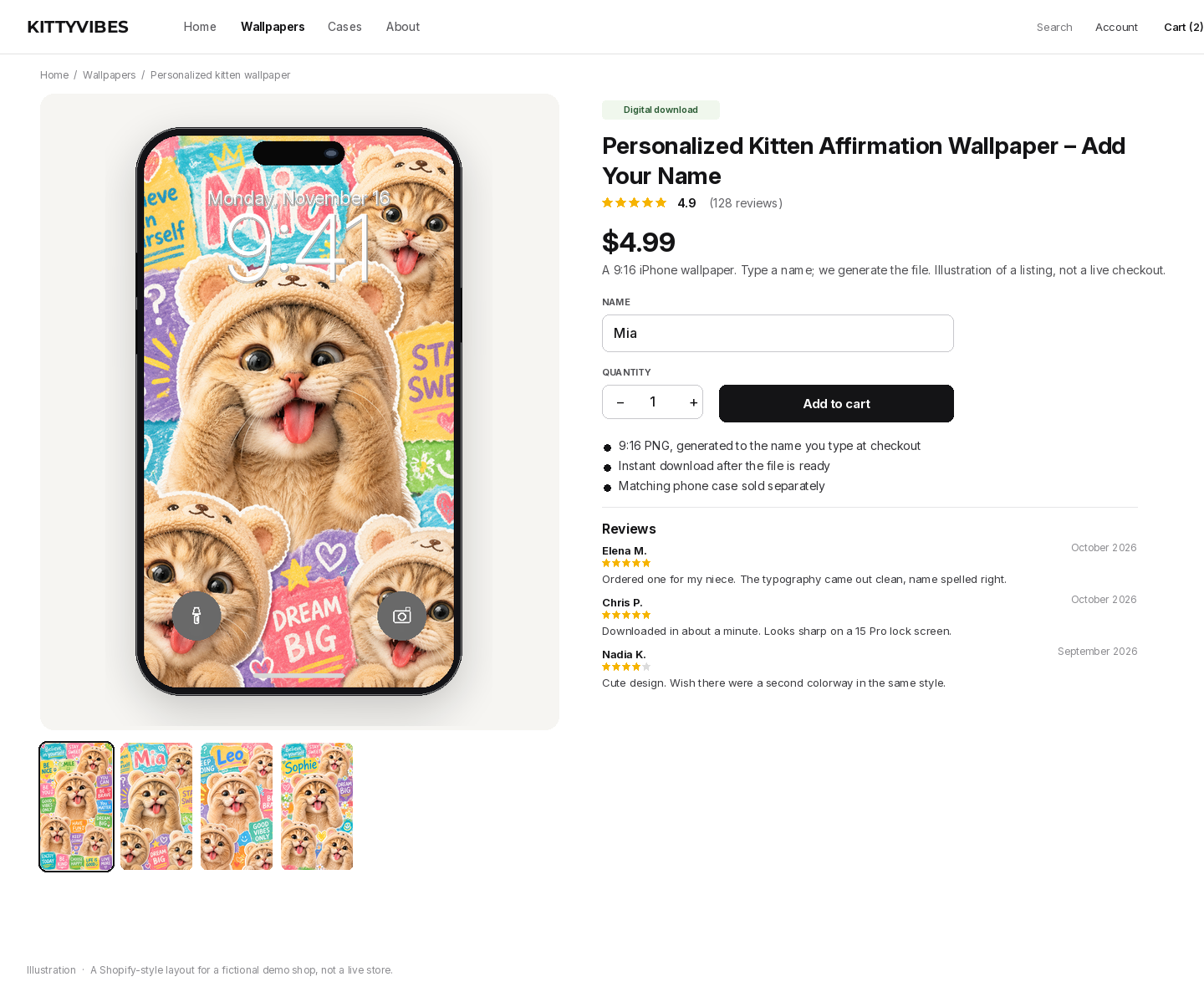
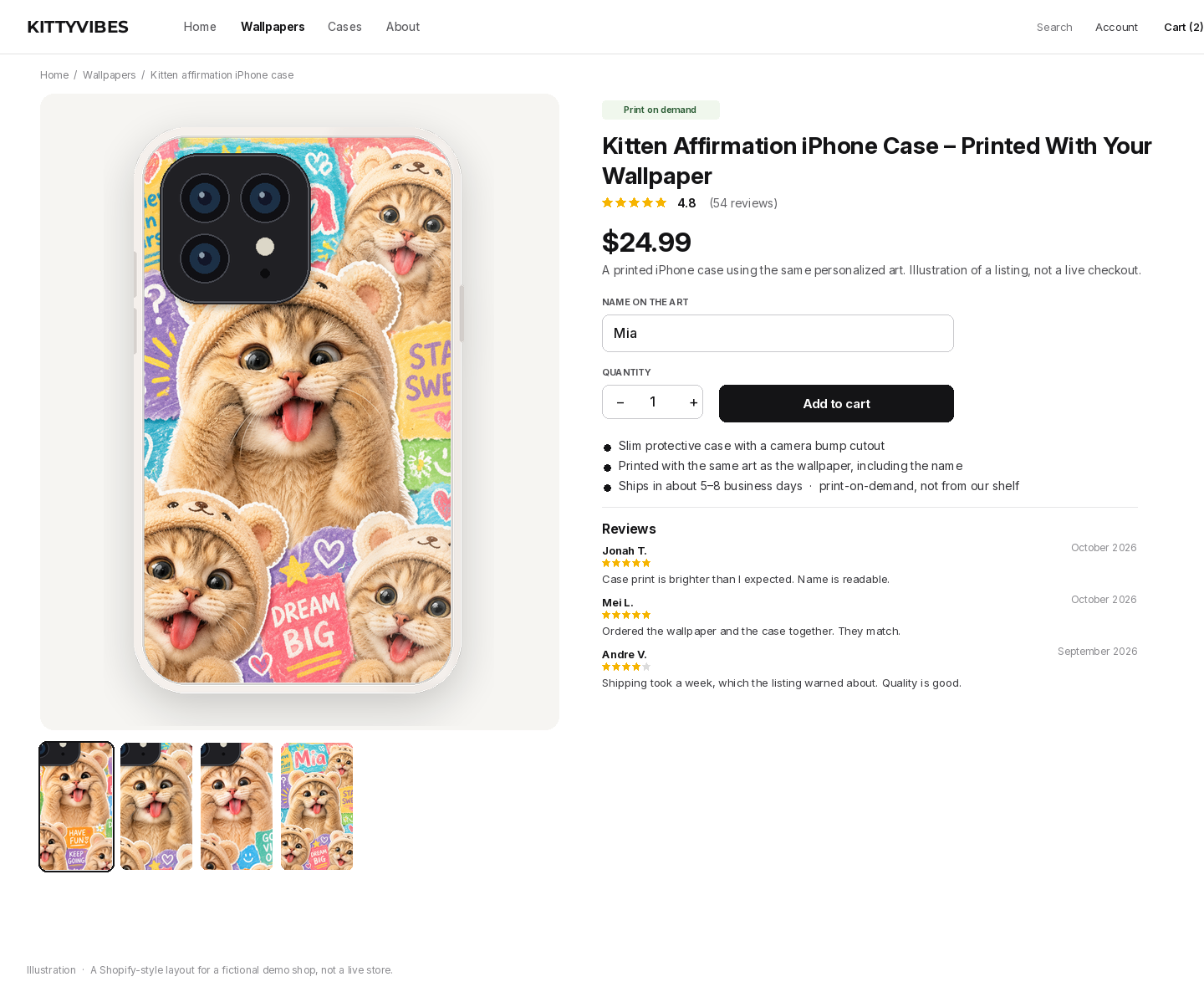
Two products are enough for a first catalog: a digital wallpaper at $4.99, with a Name personalization field, and a matching iPhone case at $24.99, printed with the same art. Those prices are an example, not a rate card you have to use. The wallpaper is a file you can deliver as soon as the generation finishes. The case is a print-on-demand object, with a cost of goods and a shipping window — in this example, about five to eight business days — so the sticker price is not profit.
The product pages below are Shopify-style illustrations for the fictional Kittyvibes shop. They are not a live checkout.
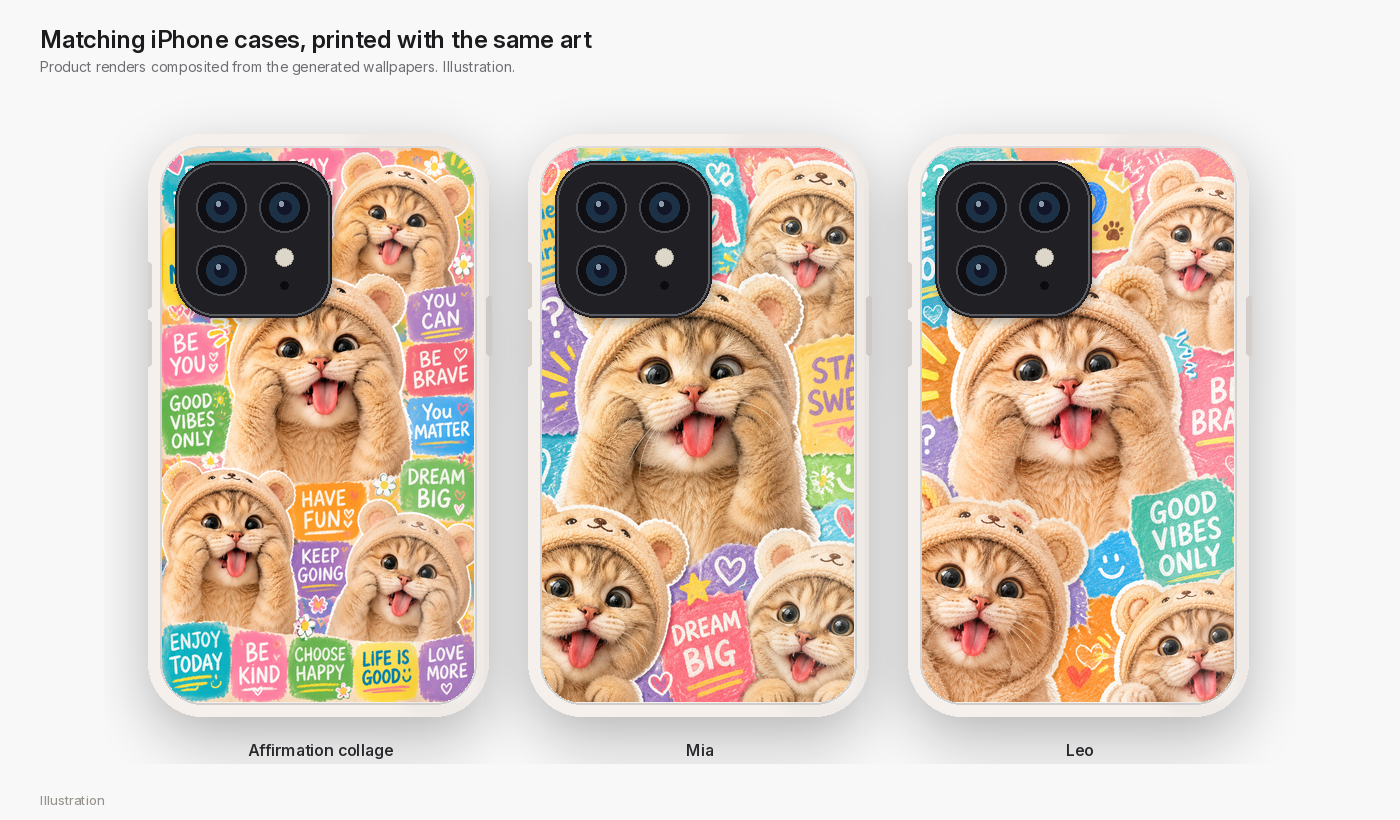
The case is the same art, wrapped around a realistic iPhone back with a camera bump, a soft shadow, and a little gloss. That is a composite of the generated wallpaper onto a case shape, not a photograph of a manufactured sample. If you sell cases, fulfill them through a print-on-demand partner and show a real manufactured proof before you promise a material you have not held.
Post the work, then count only real orders
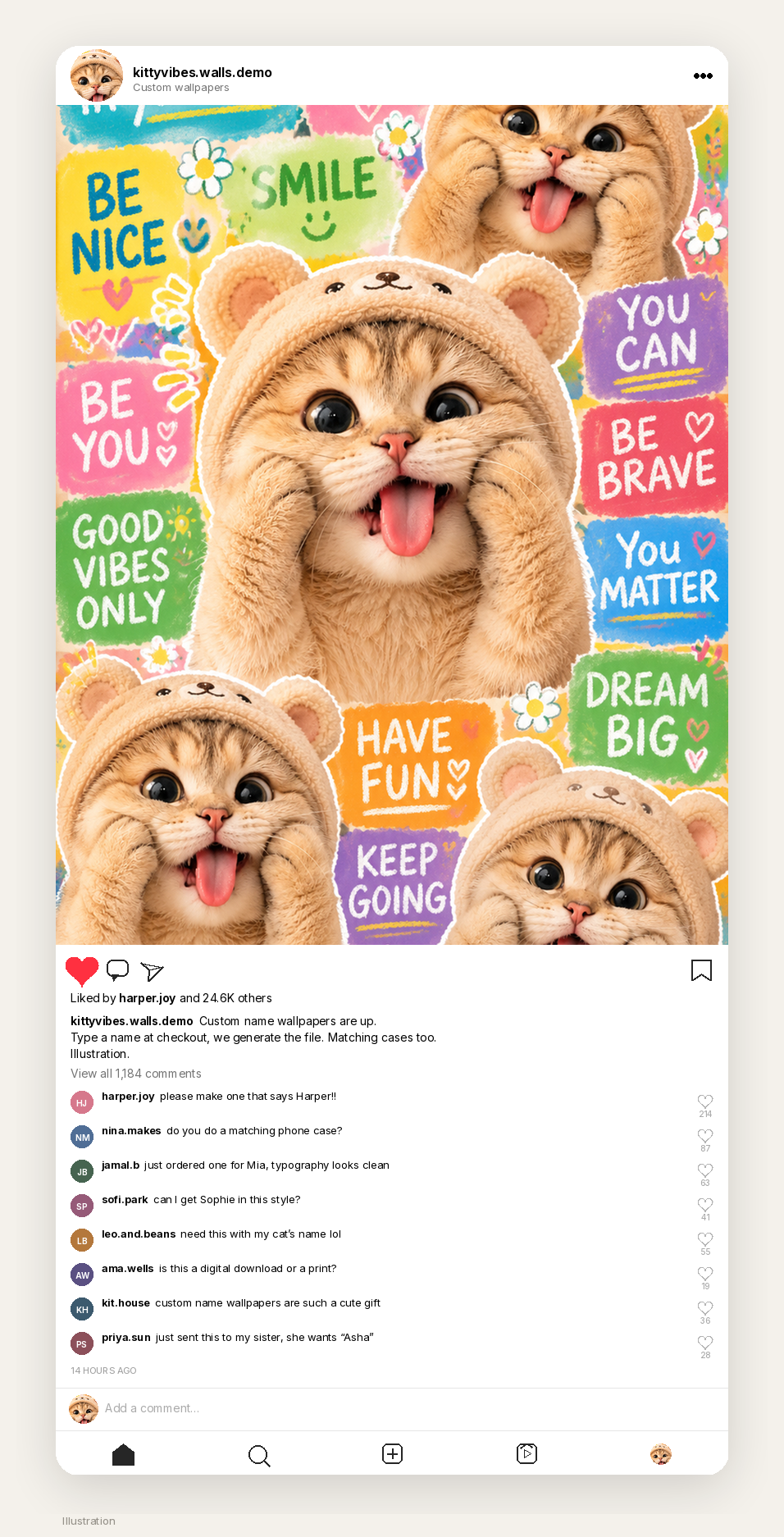
A first audience for a name-your-wallpaper shop is people who will ask for their own name in the comments. The Instagram post below is an illustration for a demo account, kittyvibes.walls.demo: a dense crop of the collage, a caption that mentions custom name wallpapers, a lot of hearts, and comments that sound like questions a real shop would actually get. The 24.6K likes and the 1,184 comments are invented, in a natural range, and labelled on the mockup. They are not a borrowed pin count, and they are not a forecast.
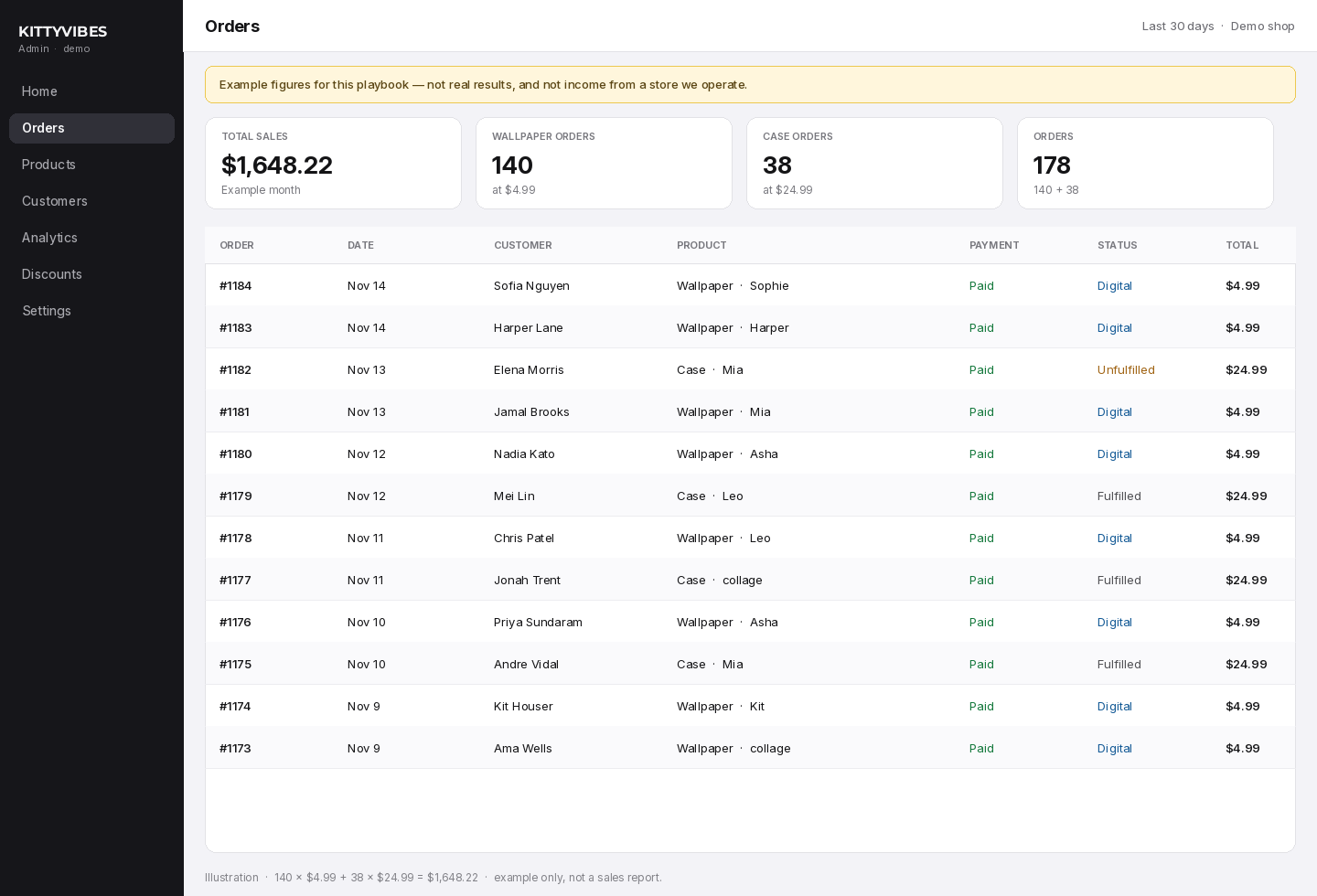
If you want a picture of a first month, you can do the arithmetic in public and still be honest about it. In this example, 140 wallpaper orders at $4.99 and 38 cases at $24.99 add up to $1,648.22. That mix is constructed. It is not a dashboard we pulled from Shopify, and it is not a typical first month you are owed. Cases also have print-and-ship costs, so the sales total is not take-home. The admin screen below uses those example figures and says so on the page.
Licensing, disclosure, and a short caution
Use your own art, or art you generated for the shop, as the product. The pin was a style reference in this demo. It was not copied onto a listing, and it should not be. The pin is already labelled AI modified; even without that badge, you do not get to resell someone else’s wallpaper because you ran Image to prompt on it. Credit the creator — wallpapper or dpz — when you show the source, then ship a new file.
If you sell, disclose that the wallpapers are AI-generated. Check every name before you fulfill: typography is the product, and a misspelled “Sophie” is a refund. Keep a human in the loop for the first orders, even if the webhook and the MCP call are automatic. And do not put a real Orauria token, a real Shopify secret, or a customer’s email into a public post or a theme file.
What this playbook is not
It is not a sales report, and it is not an income guarantee. We are not going to borrow the pin’s like count, invent a month of Shopify payouts, or treat $1,648.22 as a typical result. The Instagram engagement, the product-page reviews, and the admin totals are illustrations, labelled as such. It is not a shortcut around licensing. If the file you deliver is still the pin, or a lightly edited crop of it, you do not have a shop yet. You have a reprint. It is not a built-in Shopify app, and it is not a substitute for print-on-demand fulfillment, refunds, or a name you actually spelled correctly.
Start here
Install AI Assistant Copilot – Orauria from the Chrome Web Store, find a pin that teaches a style rather than a file to copy, and run Image to prompt. Paste the brief into Orauria’s AI Phone Wallpaper module, attach a reference you have the right to use, and generate a 9:16 you would actually put on a phone. Then add a Name field to a Shopify listing and, when you are ready, wire that name to Orauria MCP with a token you keep private. Only count a dollar when a real file has gone out.
Start here: orauria.com, the AI Phone Wallpaper module, and the Chrome Web Store listing for AI Assistant Copilot – Orauria.