
A general-purpose editor is the right tool when you need color grading, a complex timeline, or motion graphics that have been refined for years. A lot of everyday video work is narrower than that: a short product clip, a talking-head bumper, a five-second motion still for a listing. For that narrower job, you can build a small workflow that asks Orauria to generate the clip, waits until the file is ready, and leaves the last decision to you.
This is not a promise that a weekend project will replace every seat of professional editing software, and it is not a savings calculator. It is a practical path: pick a clip type, start from a still when identity matters, call generate_video through the Orauria MCP server (or generate in Studio), poll get_task, and review the result before anything is published.
The example is fictional: a tiny shop named Copper Thread Goods that wants a short, looping clip of the same ceramic piece on a table, not a feature-length edit. The people and the shop are invented. The tools are not.
What you need
| Item | Where it comes from | Notes |
|---|---|---|
| A narrow clip type | You | One subject, one length range, one aspect ratio |
| An Orauria API key | Profile → API keys | process.env.ORAURIA_TOKEN in code; YOUR_ORAURIA_TOKEN in public examples |
| Orauria MCP | http://orauria.com/api/mcp |
Bearer token. Tools include generate_video, generate_image, get_task, list_models, get_wallet |
| A video model name | list_models with kind video |
Names and billing units differ. Read the model list and the Studio composer; do not reuse an image-credit figure for video |
| A still, optional | Orauria Studio or generate_image |
Useful as a first frame or a style reference. TT Image 2.5 stills have been about 0.02 credits |
| Credits | get_wallet |
Video jobs bill the Studio wallet. Check the balance before you start a batch |
| The Chrome extension, optional | AI Assistant Copilot – Orauria | Image to prompt can turn a style frame into a written brief, about 0.06 credits |
| A review step | You | Do not auto-publish a clip you have not watched |
Step 1. Decide what this workflow is for — and what it is not
Write the job in one sentence. Copper Thread’s sentence is: “From a still of our vase, generate a short 16:9 clip of the same object in soft window light, then I pick the take I would put on a product page.”
Be as clear about the jobs you will not take on. Advanced finishing, multi-track composites, and typography-heavy motion design still belong in a dedicated editor. A custom generate-and-review loop is worth it when the work is repetitive and the output is a short clip. It is a poor substitute when the work is a film.
Step 2. Start with a still when the subject has to stay itself
If the clip must show a specific product or character, generate or photograph a clean still first. In Studio, use Image mode, Single, and TT Image 2.5, and attach a reference. Rewrite the brief so identity comes before the new motion, as in How to Keep Product Identity Stable. Image to prompt helps when a style frame taught you the light, but the identity reference should be your object.
Some video models in list_models accept a first-frame image or reference images; others are text-to-video only. Read the description for the model you pick. This guide does not invent a single parameter name that covers every video model. When you call MCP, pass the prompt and any reference the current model expects, and keep the key on the server.
Step 3. Confirm the model and the wallet before you spend
Call list_models with kind video and pick one model whose description matches the clip: text-to-video, image-to-video, or reference-to-video. Then call get_wallet. Official MCP documentation is clear that MCP is only a connector, that video jobs use the Studio wallet, and that a call can error if credit is too low.
Video billing is not the same as a still-image credit. Some models bill per second, some per job, some by token. Do not paste an image price into a video spreadsheet. Look at the composer in Studio or the difference in get_wallet after a single test clip.
Step 4. Call generate_video, then poll get_task
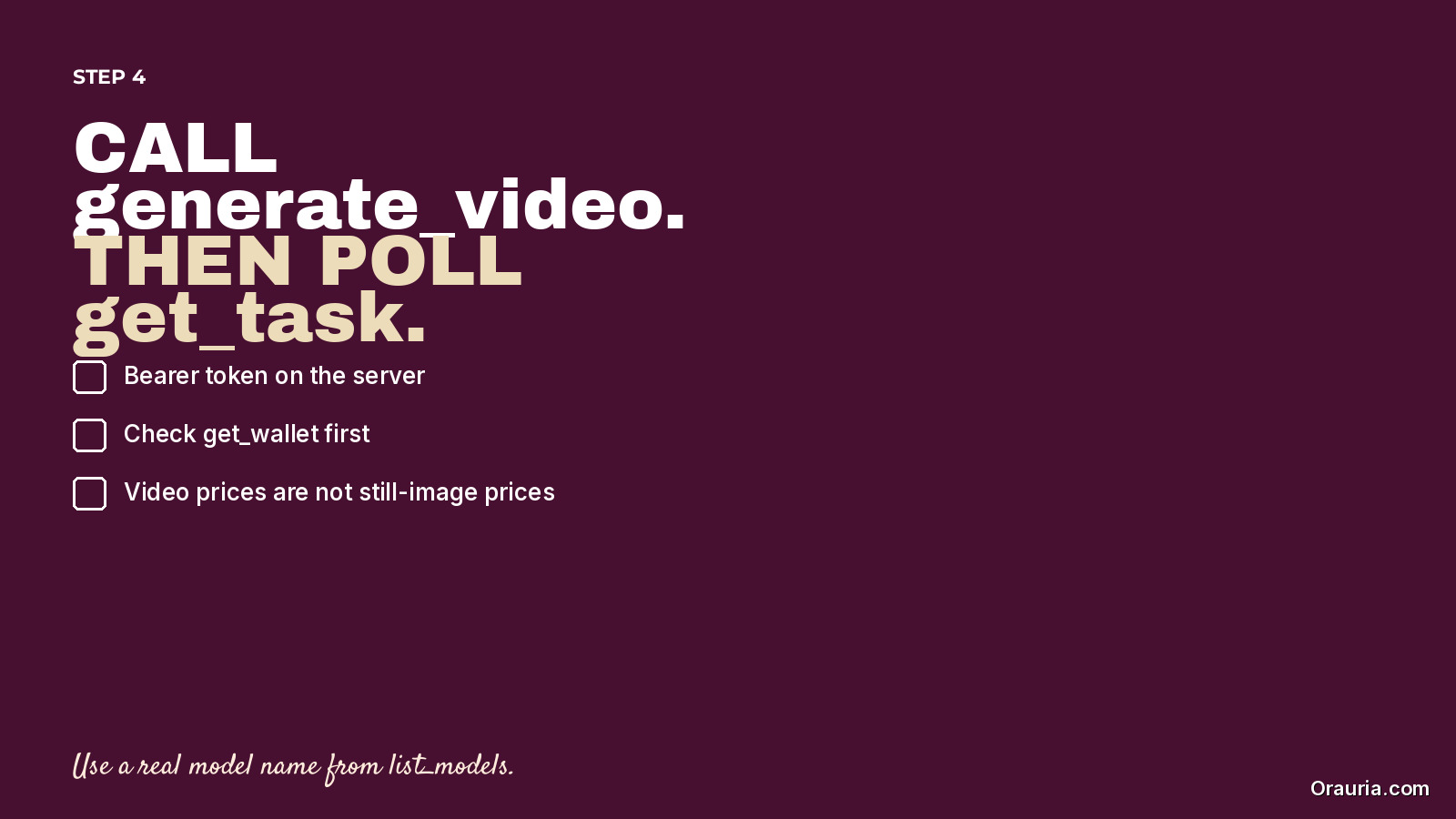
The pattern is the same as image jobs: start the task, then wait for the file. A compact public example looks like this:
const TOKEN = process.env.ORAURIA_TOKEN;
const MCP_URL = "http://orauria.com/api/mcp";

export async function startClip(prompt: string) {
  const started = await fetch(MCP_URL, {
    method: "POST",
    headers: {
      Authorization: "Bearer YOUR_ORAURIA_TOKEN",
      "Content-Type": "application/json",
    },
    body: JSON.stringify({
      tool: "generate_video",
      params: {
        model: "YOUR_VIDEO_MODEL", // from list_models kind=video
        prompt,
      },
    }),
  });
  const body = await started.json();
  return body.taskId;
}
In production, send Bearer ${TOKEN} and a real model name from list_models. Poll get_task until is_final is true, then store result_url. Official docs describe generate_video as a job you start and poll until the result URL is ready. They do not publish a required poll interval, so use a short gap and stop when the job is final.
Keep the call on the server. Do not put the token in a page that ships to a browser. If you are testing by hand, you can also generate the clip in Studio and skip the route until the prompt is stable.
Step 5. Review the take, then finish elsewhere if you need to

Watch the clip next to the still. Check identity, motion that looks accidental, typography you did not ask for, and audio if the model produced any. If the subject drifted, tighten the prompt and the reference; do not publish the first file automatically.
A short generated clip can still go into a conventional editor for a title card, a cut, or a soundtrack you already own. The workflow replaces the “make the moving picture” step, not every later finishing tool. When you do publish, disclose that the footage is AI-generated if that is the honest description.
Practical notes
- Check
get_walletbefore a batch. Video can cost more than a still, and the units differ by model. - Use
YOUR_VIDEO_MODELonly as a placeholder in a tutorial. In running code, insert a name you just read fromlist_models. - Store
process.env.ORAURIA_TOKENon the server. Public snippets useYOUR_ORAURIA_TOKEN. - Image to prompt is for the written brief.
generate_videois for the clip. They are not the same tool. - Do not upload secrets or customer footage to a chat you do not control.
- A self-hosted wrapper around MCP still needs ordinary hygiene: HTTPS, no keys in git, and access limited to you.
FAQ
Can this replace a paid editor completely?
For a narrow class of short clips, it can take over the generation step. It is not a realistic stand-in for a full editorial suite.
Do I need to write code?
Not to try the first clip. Use Studio, then add a server route when you want the same prompt to run from an app.
Why not run every job only on a laptop UI?
You can, for tests. A small app is useful when you want the poll and the file storage to happen even if you close the composer.
How do I keep a product looking like itself in motion?
Start from a clean still, attach it if the model accepts a reference or first frame, and put identity language first in the prompt. Then compare the clip to the still.
How much will a clip cost?
It depends on the model and, for some models, on duration and resolution. This post does not invent a per-second price. Check the Studio composer and get_wallet.
Start here
Write one sentence that names the clip you actually need. Generate or photograph a still, install AI Assistant Copilot – Orauria if you want a style brief, then call list_models (kind video) and get_wallet. Start one generate_video job at http://orauria.com/api/mcp, poll get_task, and watch the result yourself.
The Orauria MCP page has client configs if you want to try the tools from a local chat client first. For a still-image version of the same poll loop, see How to Call the Orauria MCP from a Shopify App.