A useful Pinterest pin can teach you a lighting style, a material, or a composition. It should not become the file you sell. The missing step is a written brief you can rewrite around your own product, then paste into Orauria Studio.
That brief comes from Image to prompt in the AI Assistant Copilot – Orauria Chrome extension. You right-click a pin, wait for the prompt, edit it so the subject is yours, and generate with a reference image attached. The loop fits in a short sitting: about 0.06 credits for Image to prompt, and about 0.02 credits for a TT Image 2.5 still image in Studio.
The illustrations use fictional people and a fictional fox-and-fern artwork. They are not screenshots of Pinterest or of Studio.
What you need
| Item | Where it comes from | Notes |
|---|---|---|
| Google Chrome | Your desktop browser | Image to prompt runs from the extension’s right-click menu |
| AI Assistant Copilot – Orauria | Chrome Web Store | Install and sign in before you hunt for a pin |
| An Orauria account with credits | Your Orauria wallet | Image to prompt is about 0.06 credits per run |
| A pin you can use as a style reference | Pinterest, or another page with a right-clickable image | Credit the person who posted it. Do not reprint the pin |
| Orauria Studio | orauria.com/studio | Image mode, Single, TT Image 2.5, plus a reference image |
| A photo of your own subject | Your product, character, or shopper upload | This is the reference Studio should follow, not the pin itself |
Step 1. Install the extension
Image to prompt only appears after the extension is installed. Open the Chrome Web Store listing for AI Assistant Copilot – Orauria, add it to Chrome, and sign in with your Orauria account.
Once it is on, you can right-click an image and choose AI Assistant Copilot – Orauria → Image to prompt.
Step 2. Pick a pin that teaches a style, not a file to copy
The useful pin is already thinking like a merchandiser or an art director: light you can name, a surface you can feel, a composition you could rebuild with a different subject. A flat-lay that shows paper, ferns, and a painted fox can teach warmth and materials. It should not be the artwork you list for sale.
Skip pins that only work if you keep someone else’s face, logo, or character. Skip pins whose license, watermark, or caption makes reuse unclear. When you do use a pin as a style reference, credit the person who posted it and plan to generate a new image.
Step 3. Right-click, then run Image to prompt
Right-click the image on the pin and choose AI Assistant Copilot – Orauria → Image to prompt. The extension analyzes the picture and returns a written brief.
This step is the one that costs about 0.06 credits. Wait until the prompt is complete, then copy the whole brief. Do not grab only the first sentence — the useful part is often the lighting, the materials, and the composition notes further down.
If the brief names a brand, a logo, or a person you do not have the right to use, cut those lines in the next step. You are responsible for what you generate next.
Step 4. Rewrite the brief around your own subject
A raw Image to prompt brief is a starting point, not a finished instruction. Rewrite it before you paste it into Studio.
Keep the parts that describe style: light direction, palette, materials, lens feel, and how the object sits in the frame. Change the parts that describe the subject, so the new picture is yours. Add a short identity paragraph if you will attach a reference photo — the same mug, the same fox, the same handmade vase, not a cousin of it.
Also write what should not appear: no logos, no brand names, no text on the object if you do not want lettering, no other characters wandering into the frame. If the original brief sounds like a reprint of the pin, it is not ready.
This rewrite is the same habit you will later put inside a Shopify app, as in How to Call the Orauria MCP from a Shopify App.
Step 5. Paste the brief into Studio and attach a reference
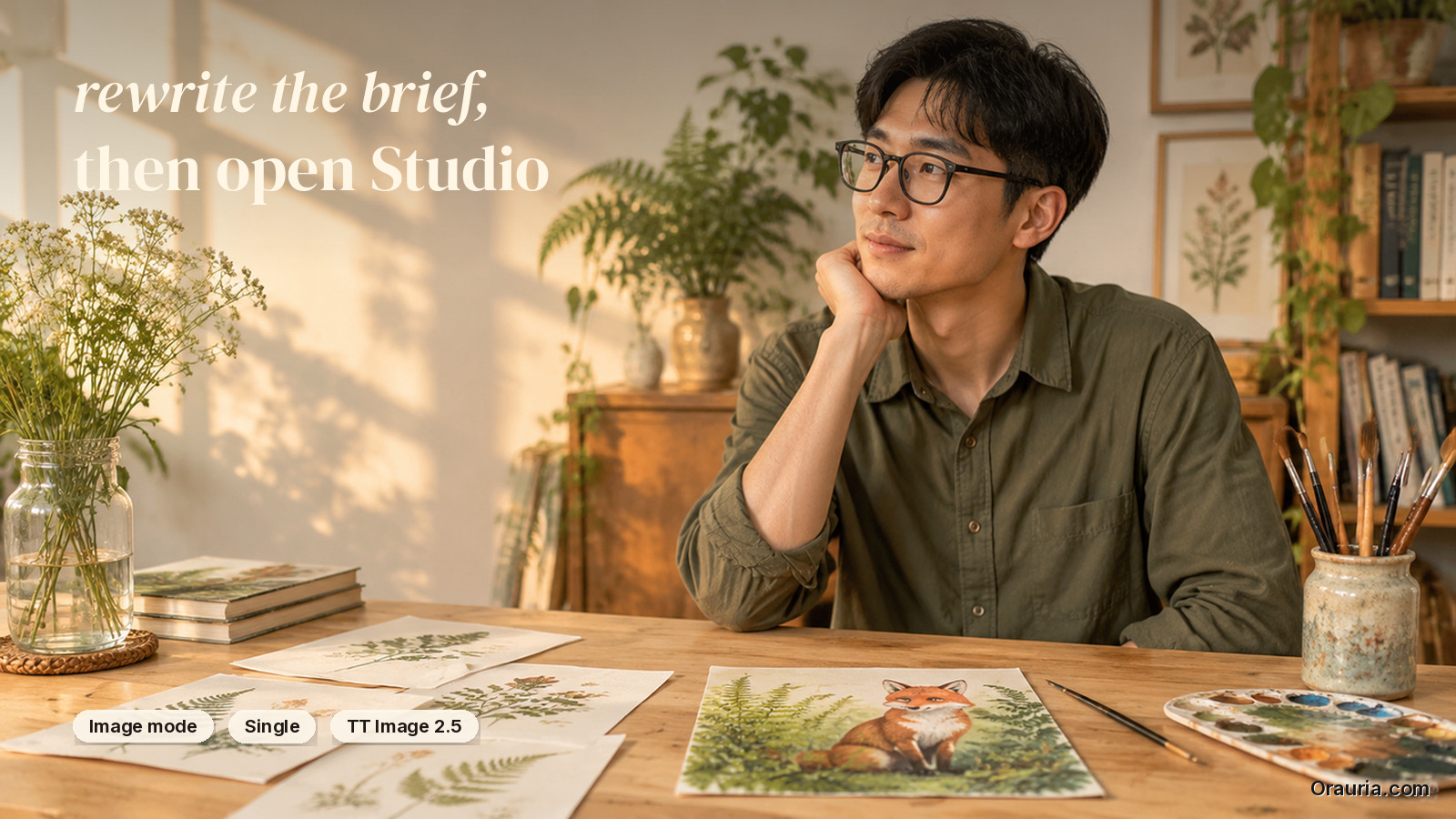
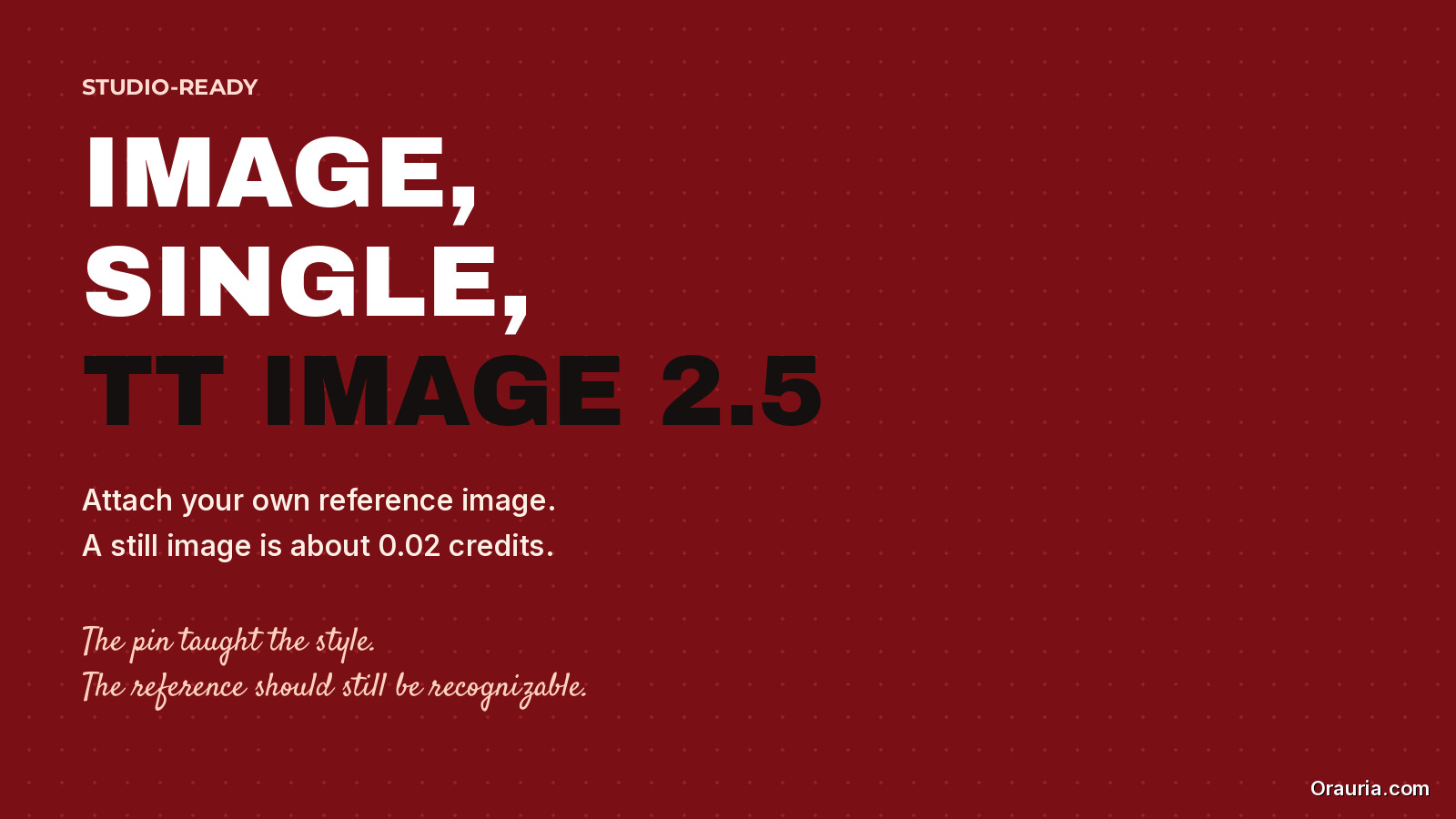
Open Orauria Studio and set the composer to Image mode, Single, and TT Image 2.5. Attach a reference image of your actual subject — the shopper’s photo, your product shot, or the character you need to keep. Paste the rewritten brief. Choose an aspect ratio that matches the job (16:9 for a banner or a landscape product photo, 1:1 for a catalog tile, 9:16 for a vertical listing).
A TT Image 2.5 still image is about 0.02 credits in the composer (0.0208 on recent jobs). Generate once, then look at the result beside the reference, not only beside the pin. The pin taught the style. The reference should still be recognizable in the new picture. If identity slipped, tighten the brief and try again — How to Keep Product Identity Stable When You Use a Reference Image in Studio is the longer checklist for that review.
Step 6. When the brief works, you can run it again from an app
Once you trust a rewritten brief, you do not have to click Studio for every future order. The same model is available through the Orauria MCP server at http://orauria.com/api/mcp, with generate_image and a get_task poll, as the Shopify guide in this series explains.
Keep the two doors straight. Image to prompt, in the extension, is how you turn a picture into a brief. Studio and MCP are how you turn a brief into a new image. This post does not invent an Image to prompt HTTP path; if you later call that API from a server, look up the current URL in Orauria’s docs and store it in an environment variable.
Practical notes
- Install the extension before you hunt for a pin, so the right-click menu is ready.
- Credit the source pin when you show it, and ship a new image, not a reprint.
- Faces, logos, and brand marks in a pin are not yours to keep. Rewrite them out.
- Image to prompt is about 0.06 credits per run; a TT Image 2.5 still is about 0.02 credits. Other models have their own prices — read the Studio composer.
- Disclose that the artwork is AI-generated when you use it in a shop or a campaign.
FAQ
Does Image to prompt only work on Pinterest?
The step in this guide is a right-click on an image in Chrome after the extension is installed. Pinterest is a convenient place to find style references, but the menu is not limited to a single site. You are still responsible for how you use the source image.
Why not paste the pin straight into Studio?
You can attach a reference in Studio. Image to prompt is useful when you want a written brief you can edit — especially when the pin is a style teacher and a second photo is the subject you need to keep.
What do Image, Single, and TT Image 2.5 mean here?
They are the Studio settings this guide uses: Image mode rather than video, a single still rather than a batch, and the TT Image 2.5 model. That model is listed for product images and supports reference-image fusion.
How much does this five-minute loop cost?
About 0.06 credits for Image to prompt and about 0.02 credits for one TT Image 2.5 still. A second generate costs another still-image credit. These figures come from the extension and from the Studio composer; they are not a price list for every model.
Do I have to attach a reference image in Studio?
If you care about a specific product or character, yes, attach that photo and mention the match in the prompt. If you only want a loose style study, you can generate from the rewritten brief alone, but identity will be weaker.
Can I automate this later?
Yes. Once the brief is stable, you can call generate_image from a Shopify app through Orauria MCP and poll get_task, as described in the first guide in this category.
Start here
Install AI Assistant Copilot – Orauria from the Chrome Web Store, find one pin that teaches a style you can own, and run Image to prompt. Rewrite the brief around your subject, then generate in Orauria Studio with Image mode, Single, TT Image 2.5, and a reference image attached.
When you are ready to run that loop on an order, continue with How to Call the Orauria MCP from a Shopify App. When the object has to stay recognizable from scene to scene, continue with How to Keep Product Identity Stable When You Use a Reference Image in Studio.